All About Digital Photos
Home | What Is | Storage | Label | Geotag | DPI | Printing | Print Shops | Change DPI | Change Size

What is a Digital Photo
The following is a modified version of an article that I wrote for the Tacoma-Pierce County Genealogical Society and which appeared in the Summer 2005 issue of "The Researcher"

This article will examine the basic question, “what is a digital photo?”
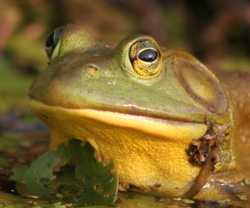

DIGITAL PHOTO PIXELS
You may have to wait a few seconds for the full sequence of 6 photos to load and play.
A digital photo is made up of a series of pixels (picture elements). Most of today’s digital photos use a “24 bit RGB” system to colour each pixel. This means that each pixel has a 256 colour gradation of red, green and blue. For instance the colour orange is 255 Red, 102 Green and 0 Blue and light pink is 255 Red, 153 Green and 204 Blue. This system can produce 16 million colours which approximates what the human eye can perceive. To confuse things, many modern computers will show a screen colour of “32 bit” – this is just 24 bit RGB plus an alpha (transparency) channel. Older computers will generally show their highest setting as 24 bit (Truecolor). Either way, to properly view your 24 bit RGB digital images, you should have your computer set to either 24 or 32 bit (whatever highest display setting is offered). For more information about different modes of colour see the page about Digital Colour Models.

The dimensions of a digital photo are expressed in terms of its pixels, for instance “800 x 600” or “1520 x 1280” where the first number is the width of the photo and the second number the height of the photo. The term pixel is also used for the image sensor elements on a digital camera. Cameras are rated in terms of “megapixels” with an entry level digital camera generally offering 3 to 5 megapixels. At 3 megapixels it means that the digital resolution is about 2048 x 1536 which if you multiply the horizontal and vertical pixel dimensions comes to 3,145,728 pixels. My current camera is 8 megapixels which results in photos that are 3504 x 2336 pixels in size. Keep the digital photo pixel dimensions in mind when looking at the photos on your computer. Your computer screen is likely set to display something like 1024 x 768 pixels, meaning that when a large digital photo is displayed it is either being shrunk in size to fit your screen (in which case there may be distortion of the image) or you may have to scroll around the photo to view it in its entirety.

Digital Photo Pixels
Individual pixels that make up a digital photo
There is a great deal of confusion in the digital world regarding the “resolution” of a digital photo. The true resolution of a digital photo is simply the photo’s dimensions in pixels. The confusion comes about from another term called “DPI” which means “dots per inch” and which some photo computer programs mistakenly call “resolution.” To be clear up front, DPI has nothing to do with digital image quality/resolution. For more full information about DPI see the various DPI articles in this section (Myth of DPI, What Print Shops Really Want, Changing the DPI

There are four main factors that determine the quality of a digital photo:
  1. The quality of the recording device (camera's optics & sensor, scanner's sensor).
  2. The size (in pixels) of the digital image.
  3. The digital format it is stored in (lossless vs lossy compression).
  4. The technical proficiency and the "eye" of the photographer.
Common Digital Photo File Formats

The digital format that an image is stored in is very critical to quality. There are dozens of digital image formats, but the three most common are JPEG a lossy format, TIF, a lossless format and RAW an in-camera lossless format. Lossy means that image data is lost when the image is compressed while a lossless format retains all the original data, even when compressed.

JPEG (JPG, JPE) stands for Joint Photographic Experts Group and is a standard developed in the 1980s to handle colour digital images. It works best with photographic images (as opposed images of text) because it relies on the blending of colour. It is a “lossy” format, it compresses the image by blending “redundant” image pixels. As the image is compressed blurriness appears around edges of objects in the photo.

Most cameras will show JPEG image quality settings of something like low (high compression), fine (moderate compression) and superfine (low compression). This is not to be confused with image size, they are two different things (cameras generally show image size as small, medium and large which relate to the pixel dimensions of the image). In photo editing computer programs JPEG compression is usually expressed as a percentage where 100% is no compression and 0% is maximum compression (think 100% quality vs. 0% quality). Usually visible distortion starts to appear at 50%. Some programs such as Adobe Photoshop use a sliding scale from 0 to 10 (really 0% to 100%). Once compressed in JPEG format an image cannot be uncompressed (you cannot regain the original quality). This is why the original photo (your digital negative) should be taken with as little compression as possible.

image-example-100 image-example-75 image-example-50 image-example-10
Max Quality - 30 kb
0 compression
quality factor 100
Good Quality - 9 kb
25% compression,
quality factor 75
Moderate Quality - 6 kb
50% compression,
quality factor 50
Low Quality - 3 kb
90% compression,
quality factor 10

A problem with using a JPEG file as your editing original is that each time you do a "save as" with a JPEG after editing it further degrades, even if the JPEG compression is set to the highest quality. The degradation is not severe, but those who wish to maintain the best quality of their images will first "saved as" their image into a lossless format such as TIF and then do all their editing in that format. The final image can be saved back as a high quality JPEG. The next article will deal with image editing in more detail. Note that you can copy a JPEG file using your computer's copy function, multiple times with no loss of quality (like all digital files) - it is just the re-saving of a JPEG from any photo editing program after editing (or even cropping) that will add to the degradation of the image.

Pros: small image size, very good photographic reproduction, best format for emailing or posting to the web, compatible with virtually every image editor and viewer. Supports IPTC/XMP data (with certain software - see Labelling Photos).
Cons: "lossy" format, it compresses by removing information which can never be recovered, photo degradation on save (even at highest quality setting).

Note: A new version of JPEG, called JPEG2000 is starting to be implemented. It compresses through "wavelet" technology rather than block technology and at 0 compression it is a "lossless" format. It compresses 25-35% better than a standard JPEG with higher image quality. It will likely be some years before we see full scale implementation of this standard. A 0 compressed JPEG2000 (.jp2 file) is about half the size of an uncompressed TIF.

A handy tool for determining the compression factor of a JPEG is a little freeware program called JpgQ. Have a look at the JPEG Quality Estimator (follow the link on that page to JpgQ - JPEG Quality Estimator).

TIF/TIFF – This is a lossless image format, that is, no pixels are modified in the image. TIFF stands for Tag Image File Format. This generally results in very large image sizes (in terms of computer file size). TIF has the option of being compressed, using a lossless compression technique known as LZW, which will shrink the image with no loss of data. Some programs will also allow compression within a TIF by ZIP (lossless) or JPEG (lossy). Even compressed, TIF files are very large, much larger in computer file size than their JPEG equivalents. TIF is a favourite of graphic designers since it was an early standard on the mac, it is a lossless format and can contain more photo information than a JPEG image.

Pros: "lossless" format - all image information is retained. Supports IPTC/XMP data (with certain software - see Labelling Photos).
Cons: Huge file size even when compressed, has multiple "standards" so not all programs can read all TIF files. Not web browser compatible.

RAW – This is a lossless image format offered by some digital cameras. The JPEG image produced by a camera is an image processed by the camera’s software in which variables such as sharpness, contrast, saturation and white balance are applied to the digital image based on the camera’s settings. RAW on the other hand is the direct unprocessed image as seen by the camera’s sensor. It allows the post-image processing using any of the camera parameters (i.e. sharpness, contrast, etc.). This format is generally preferred by professional photographers for their image “negatives” (originals) since it allows the greatest post-processing flexibility. A downside of RAW is that the format is currently proprietary to the camera manufacturer and therefore it is not a good long term archival standard (you should convert your RAWs to TIFs for archival storage). There is work being done to standardize the RAW format, but a standard has yet to be set.

Pros: "lossless" format - allows full post processing of all in-camera variables (white balance, saturation, sharpness, etc.).
Cons: Proprietary camera manufacturer format (multiple standards), not all software can view RAW files, large file size, doesn't support IPTC/XMP data. Not web browser compatible.

Canon Screen
Example of a photo quality selection screen from a Canon digital camera. Resolution is set to best (largest pixel dimensions) and file compression is set to "superfine" (lowest JPEG compression)

Hopefully this article has provided you with a better sense of what a digital image actually is. The general rule is to shoot your images with the highest setting that your camera will allow (largest image size in terms of pixels, lowest compression – usually large/superfine). Purists will use RAW if available, but for most people, using the large/superfine (or equivalent) JPEG setting in their digital camera is just fine.

The following are computer file sizes of a 2048 x 1536 size photo (note that these sizes will vary a bit with the content of the photo, such as the amount of colour in the photo).
  • Superfine JPEG (100%/ Adobe quality 10) = 1,500 kb (1.5 Mb)
  • Fine JPEG (90%/ Adobe quality 7) = 600 Kb (0.6 Mb)
  • Regular JPEG (80%/ Adobe quality 6) = 350 Kb (0.35 Mb)
  • JPEG2000 (uncompressed) = 4,000 Kb (4.0 Mb)
  • TIF (uncompressed) = 9,200 Kb (9.2 Mb)
  • TIF (LZW compressed) = 4,500 (4.5 Mb)
  • CRW (Canon RAW format) = 2,300 Kb (2.3 Mb)

If that same photo was resampled down to 800 x 600 and saved at 50% JPEG it would be about 100 kb (0.1 Mb) in size (ideal for emailing). See the Changing Photo Size page.


Digital Photo Acronymns & Nomencalture

Within photo programs you'll sometimes see nomenclature that specifically relates to digital photos. The main ones are some of the data packages carried within certain types of digital files. These are briefly explained below:

EXIF
EXIF stands for "Exchangable Image File". It is used by camera manufacturers to store camera shooting information within certain types of digital image files (i.e. JPEG, TIFF and RAW). Like many digital "standards," it's not really a standard, it's just in common use by manufacturers of digital cameras. Exif version 2.1, commonly used today, dates to 1998 (Exif v.2.2 (Exif Print) dates to 2002). Exif can store camera specific information such as date, time, ISO, aperture, focal length, flash info, etc. It can also store geographic information (see the Geotagging Page) and even sound files. It has a number of problems, the first of which is that it's now woefully outdated. It has size limitations (limiting the amount of data that can be stored to 64k) and a large number of quirks (i.e. it stores the time/date information but doesn't include timezone information). Since it's not natively supported by RAW file formats, camera manufacturers have invented their own methods to incorporating Exif data in a RAW file, creating many proprietary variations of RAW. However, despite its limitations, since it is in such common use, we'll be seeing it for some years to come before something else (perhaps XMP) takes over.

IPTC
IPTC stands for International Press Telecommunications Council. The world's press needed a way to store various types of data (i.e. caption, description, author) inside digital photos that were being sent back to their home office. While EXIF contains the camera data, IPTC contains the labelling data for the photo. It actually is a defined standard, the origins of which go way back to 1979. But it was in 1994 that Adobe developed a way to incorporate this information directly into a digital photo file (JPEG and TIFF). It's now in wide use as general method of internally labelling digital photos. For the full details, see my Labelling Digital Photos Page. There is a newer labelling format (see Adobe XMP below), but it maintains all the IPTC fields. In my articles I refer to it as IPTC/XMP - meaning the digital photo labelling portion of XMP, even though XMP is far more than just IPTC standard labelling.

Adobe XMP
XMP stands for "Extensible Metadata Platform." It was introduced by Adobe in 2001. Adobe, as the largest developer of photo and image related products (i.e. Photoshop, Illustrator), wanted an open standard that developers could adopt to allow metadata to be shared among many types of files and computer systems. Metadata can be thought of as "data about data" - so with a photo it would incorporate everything described by both the EXIF and IPTC data (which are themselves both types of metadata), as well as anything else pertinent to the photo. Adobe made it "extensible" - meaning that it is designed to be expanded upon (to incorporate things developers haven't thought of yet). So, it's very flexible. Today it is used in such things as digital photo files, digital music files and digital documents. Given its flexibility and its push as an open standard by a behemoth corporation (Adobe), I expect (hope) that everyone will adopt its use and that one day, all digital files will have a standardized XMP core.

Standards
A final word here about "standards." It's been a real problem with all types of digital data, not just digital photos. The problem has no easy resolution since new ideas and concepts are coming along all the time, how do you incorporate those into something (such as a JPEG file format) that never envisaged it. Some developers will alter the standard (making it non-standard). This then means that at best, other software may not understand that change, or, at worst, because the standard has been changed, data will be corrupted or even destroyed. Adoption of a "standard" takes a long time. Even though IPTC has been around since 1994 as a defined standard for incorporation into JPEG files, some photo software still doesn't recognize it, and if you save your photo with that software, it will be saved without the IPTC data.

This is a reason why I hope that Adobe's XMP initiative will succeed, it seems to be flexible enough to be able to incorporate new things, while still maintaining a "standard."


Home | What Is | Storage | Labelling | Geotagging | Myth DPI | Printing | Print Shops | Change DPI | Change Size

EmailComments: send me email: Ken Watson
URL: www.rideau-info.com/photos/whatis.html
© 2003-2008 Ken W. Watson