 Common Digital Photo File Formats
The digital format that an image is stored in is very critical to quality. There are dozens of digital image formats, but the three most common are JPEG a lossy format, TIF, a lossless format and RAW an in-camera lossless format. Lossy means that image data is lost when the image is compressed while a lossless format retains all the original data, even when compressed.
JPEG (JPG, JPE) stands for Joint Photographic Experts Group and is a standard developed in the 1980s to handle colour digital images. It works best with photographic images (as opposed images of text) because it relies on the blending of colour. It is a “lossy” format, it reduces the file size of an image by blending “redundant” image pixels. As the image is compressed blurriness appears around edges of objects in the photo.
Most cameras will show JPEG image quality settings of something like low (high compression), fine (moderate compression) and superfine (low compression). This is not to be confused with image size, they are two different things (cameras generally show image size as small, medium and large which relate to the pixel dimensions of the image). In photo editing computer programs JPEG compression is usually expressed as a percentage where 100% is no compression and 0% is maximum compression (think 100% quality vs. 0% quality). Usually visible distortion starts to appear at 50%. Adobe Photoshop uses a sliding scale from 0 to 12* (really 0% to 100%). Once compressed in JPEG format an image cannot be uncompressed (you cannot regain the original quality). This is why the original photo (your digital negative) should be taken with as little compression as possible.
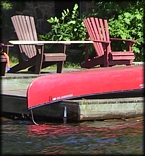 |
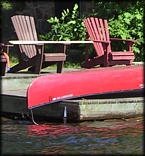 |
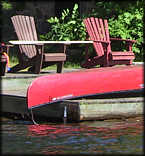 |
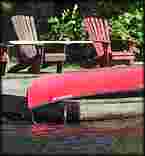 |
Max Quality - 30 kb
quality factor 100
(Adobe 12) |
Good Quality - 9 kb
quality factor 75
(Adobe 6) |
Moderate Quality - 6 kb
quality factor 50 |
Low Quality - 3 kb
quality factor 10 |
A problem with using a JPEG file as your editing original is that each time you do a "save as" with a JPEG after editing it further degrades, even if the JPEG compression is set to the highest quality. The degradation is not severe, but those who wish to maintain the best quality of their images will first "saved as" their image into a lossless format such as TIF and then do all their editing in that format. The final image can be saved back as a high quality JPEG. Note that you can copy a JPEG file using your computer's copy function, multiple times with no loss of quality (like all digital files) - it is just the re-saving of a JPEG from any photo editing program after editing (or even cropping) that will add to the degradation of the image.
Pros: small image size, very good photographic reproduction, best format for emailing or posting to the web, compatible with virtually every image editor and viewer. Supports IPTC/XMP metadata (with certain software - see Labelling Photos).
Cons: "lossy" format, it compresses by removing information which can never be recovered, photo degradation after editing on save (even at highest quality setting).
A handy tool for determining the compression factor of a JPEG is a little freeware program called JpgQ. Have a look at the JPEG Quality Estimator (follow the link on that page to JpgQ - JPEG Quality Estimator).
JPEG2000 (JP2, JPF, JPX) this is a newer (introduced in 2000) version of JPEG which includes a lossless setting. It compresses through "wavelet" technology rather than block technology and at 0 compression it is a "lossless" format. It compresses 25-35% better than a standard JPEG with higher image quality. It will likely be some years before we see full scale implementation of this standard since it is much more complex than JPEG and hence more difficult to implement in photo software (so not all software fully supports it and/or properly implements it).
It (as JP2) is one of the recommended U.S. Library of Congress digital preservation standards (after TIF which is their primary recommendation).
Pros: small image size, very good photographic reproduction, has a lossless setting. Supports IPTC/XMP metadata (with certain software - see Labelling Photos).
Cons: not supported by all software, not properly implemented by some software, not web browser compatible.
JPEG XR (JXR) this is another newer (introduced in 2009) version of JPEG which includes a lossless setting. It was developed by Microsoft and the XR stands for Extended Range. It supports more colour depth than regular JPEG and other features such as tiling.
Pros: small image size, very good photographic reproduction, has a lossless setting. Supports IPTC/XMP metadata.
Cons: not supported by all software, not properly implemented by some software, not fully web browser compatible.
TIF/TIFF – This is a lossless image format (as long as you don't use JPEG compression within the TIF), that is, no pixels are modified in the image. TIFF stands for Tag Image File Format. This generally results in very large image sizes (in terms of computer file size). TIF has the option of being compressed, using either LZW or ZIP, both lossless compression methods. Using LZW or ZIP will shrink the TIF image with no loss of data. Note that some programs also provide an option for JPEG compression - if used it will result in data loss (so don't use that option). Even compressed, TIF files are very large, much larger in computer file size than their JPEG equivalents. TIF is a favourite of graphic designers since it was an early standard on the mac, it is a lossless format and can contain more photo information than a JPEG image.
TIF is the main recommended format for digital preservation by the U.S. Library of Congress.
Pros: "lossless" format - all image information is retained. Supports IPTC/XMP metadata (with certain software - see Labelling Photos).
Cons: Huge file size even when compressed, has multiple "standards" so not all programs can read all TIF files. Not web browser compatible.
RAW – This is a lossless image format offered by some digital cameras. The JPEG image produced by a camera is an image processed by the camera’s software in which variables such as sharpness, contrast, saturation and white balance are applied to the digital image based on the camera’s settings. RAW on the other hand is the direct unprocessed image as seen by the camera’s sensor. It allows the post-image processing using any of the camera parameters (i.e. sharpness, contrast, etc.). This format is generally preferred by professional photographers for their image “negatives” (originals) since it allows the greatest post-processing flexibility. A downside of RAW is that the format is currently proprietary to the camera manufacturer and therefore it is not a good long term archival standard (you should convert your RAWs to TIFs for archival storage). There is work being done to standardize the RAW format, but a standard is unlikely to be set since new features (i.e. whitebalance, focus and HDR bracketing) being added into digital cameras end up being part of their RAW data and this keeps changing as new inovations are introduced.
Pros: "lossless" format - allows full post processing of all in-camera variables (white balance, saturation, sharpness, etc.).
Cons: Proprietary camera manufacturer format (multiple standards), not all software can view RAW files, large file size. Not web browser compatible.
PDF – PDF (Portable Document Format) is not an image filetype although images can be stored within a PDF. The cautionary note here is that PDFs can use a variety of image storage types within the PDF, including lossy JPEG. So you have to be very careful about how you create a PDF containing an image you want. The PDF creator you use will have a default settings, including the type of image storage within the PDF and the resolution at which the image is stored. That default is usually to balance file size with document quality. The biggest thing that affects a PDF's 'file size are images within a PDF. Text (pure fonts) takes very little space, it's images that make the PDF grow in file size. So, be aware of this. I do not recommend PDF as a primary image storage type (JPEG and TIF would be first choices).
Pros: open format, supported by a vast array of software. Can include text and images, so very good for reports and such.
Cons: Image quality can be degraded in a PDF depending on the PDF settings.
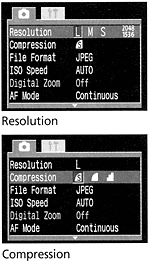 |
Example of a photo quality selection screen from a Canon digital camera. Resolution is set to best (largest pixel dimensions) and file compression is set to "superfine" (lowest JPEG compression)
|
Hopefully this article has provided you with a better sense of what common digital photo file types actually are. You will see dozens of other file types in any given photo program (i.e. GIF, PNG, BMP, PSD, etc.) - these are normally used for specific graphics purposes (animation, transparency, text, layering) and not generally used for digital photos (an exception would be to use a proprietary photo software format such as Adobe Photoshop PSD to maintain editable layers in a lossless format).
The general rule is to shoot your images with the highest setting that your camera will allow (largest image size in terms of pixels, lowest compression – usually large/superfine). Purists will use RAW if available, but for most people, using the large/superfine (or equivalent) JPEG setting in their digital camera is just fine.
Digital Image Filesize
From the discussion on the What is A Digital Photo page we know that the "size" of a digital image is its total number of pixels, expressed as megapixels. This is different than the filesize which is the amount of bytes used to store the image.
Even with the same digital size of an image (i.e. 3 Mp) the filesize is going to vary depending on the filetype used to store the image, the amount of colour in the image and the colour mode that is being used. As an example of this variation within the same digital image size, the filesize range of JPEGs shot with my current camera (stored at about 96% / Adobe 11 quality), at 18 Mp, varies from 4 Mb to 11 Mb - the variation a result of colour and brightness in each photo. The exception is with an uncompressed TIF which will always have the same file size for a digital photo of a certain Mp resolution and colour mode.
The chart below shows examples of a 3 Mp image and an 15 Mp image (similar scenes) stored using different file formats.
| Filetype |
3 Mp Image |
15 Mp Image |
| JPEG - 100%/Adobe 12 - 24 bit RGB |
2.6 Mb |
10.2 Mb |
| JPEG - 94%/Adobe 10 - 24 bit RGB |
1.2 Mb |
4.5 Mb |
| JPEG - 75%/Adobe 6 - 24 bit RGB |
0.5 Mb |
1.8 Mb |
| TIF - uncompressed - 24 bit RGB |
9.2 Mb |
44.1 Mb |
| TIF - LZW compressed - 24 bit RGB |
6.4 Mb |
25.8 Mb |
| CRW/CR2 -Canon RAW - 24 bit RGB |
2.3 Mb |
22.4 Mb |
| JPEG2000 - uncompressed - 24 bit RGB |
4.0 Mb |
17.9 Mb |
| JPEG - 94%/Adobe10 - 48 bit RGB |
1.2 Mb |
4.5 Mb |
| TIF - LZW compressed - 48 bit RGB |
12.7 Mb |
53.0 Mb |
| TIF - LZW compressed - 96 bit RGB |
29.8 Mb |
124.9 Mb |
If those same photos were resampled down to 800 x 600 and saved at 50% JPEG they would be about 100 kb (0.1 Mb) in size (ideal for emailing). See the Changing Photo Size page.
Printers (the machine) use a different colour scheme called CMYK (rather than RGB) - see the colormodes page for details. These make for larger file sizes and are absolutely unnecessary for any photographic use. When printed, the printer software will do a much better job at converting from RGB to it's version of CMYK that you can - so always use RGB colourspace (generally sRGB is the best - that's what computers and cameras use - some professionals will use Adobe RGB for the slightly wider colour space). Bottom line for most people is not to muck about with the colour space, leave it as the camera set it.
Why Does Adobe Use a scale of 1 to 12 for JPEG quality?
I've been asked this question a few times and truthfully, I don't know - I can only speculate. Software developers are free to implement a "standard" any way they want to (no one forces them to adhere to any particular convention although it does serve their best interest to do so). JPEG was developed with a "quality factor" that went from 0 to 100, with 0 being the worst and 100 being the best. It's not a linear scale (quality 80 is not twice as good as quality 40) and it's not really compression as one would normally think of software compression (think ZIP, LZW or other forms of non-destructive compression).
Initially Adobe used a scale of 1 to 10, but 10 wasn't actually JPEG quality 100, it was closer to JPEG quality 94. Why not use the JPEG standard 0 to 100? I can't read the minds of the Adobe software developers, presumably they thought that 1 to 10 would be easier. Why wasn't 10 made equal to JPEG 100? This was clearly a mistake but presumably the thought went that with the non-linear JPEG scale, where 94 is not hugely different than 100 in terms of visual quality, that it was all most people would need (a reason most camera manufacturers use about quality 96 rather than 100 for their best quality JPEGs). The reason not to go to 100 is the large jump in file size - the size goes up with little return in quality - and this was in the days when hard drives were very small by today's standards.
At some point, someone complained that Adobe 10 was not JPEG 100 and must have pressed Adobe to allow for a JPEG 100 option (or maybe it was their internal software designers). Now the choice, do you change the scale of 1 to 10 which would mean that older versions of Photoshop wouldn't match newer versions, or change the scale to extend the top end (so that new Adobe 10 stays the same as old Adobe 10). So they made a good choice (given their original mistake) to extend the scale up to 12 rather than change the 1 to 10 scale.
Ideally they would have provided an equivalent JPEG 0 to 100 scale in addition to their 1 to 12 scale. Photoshop however (at least as of CS5), remains a bit schizophrenic. When doing a save to JPEG it only provides the 1 to 12 scale. However in their Save for Web and devices option, you get the 0 to 100 quality factor (and no 1 to 12 scale). Why that is remains a mystery (to me).
In real world usage there is basically no advantage to using Adobe 12/JPEG 100 over Adobe 11/JPEG 96 or even Adobe 10/JPEG 94. You can look at the chart above to see the huge jump in file size if you go to Adobe 12/JPEG 100 from Adobe 10/94.
|
